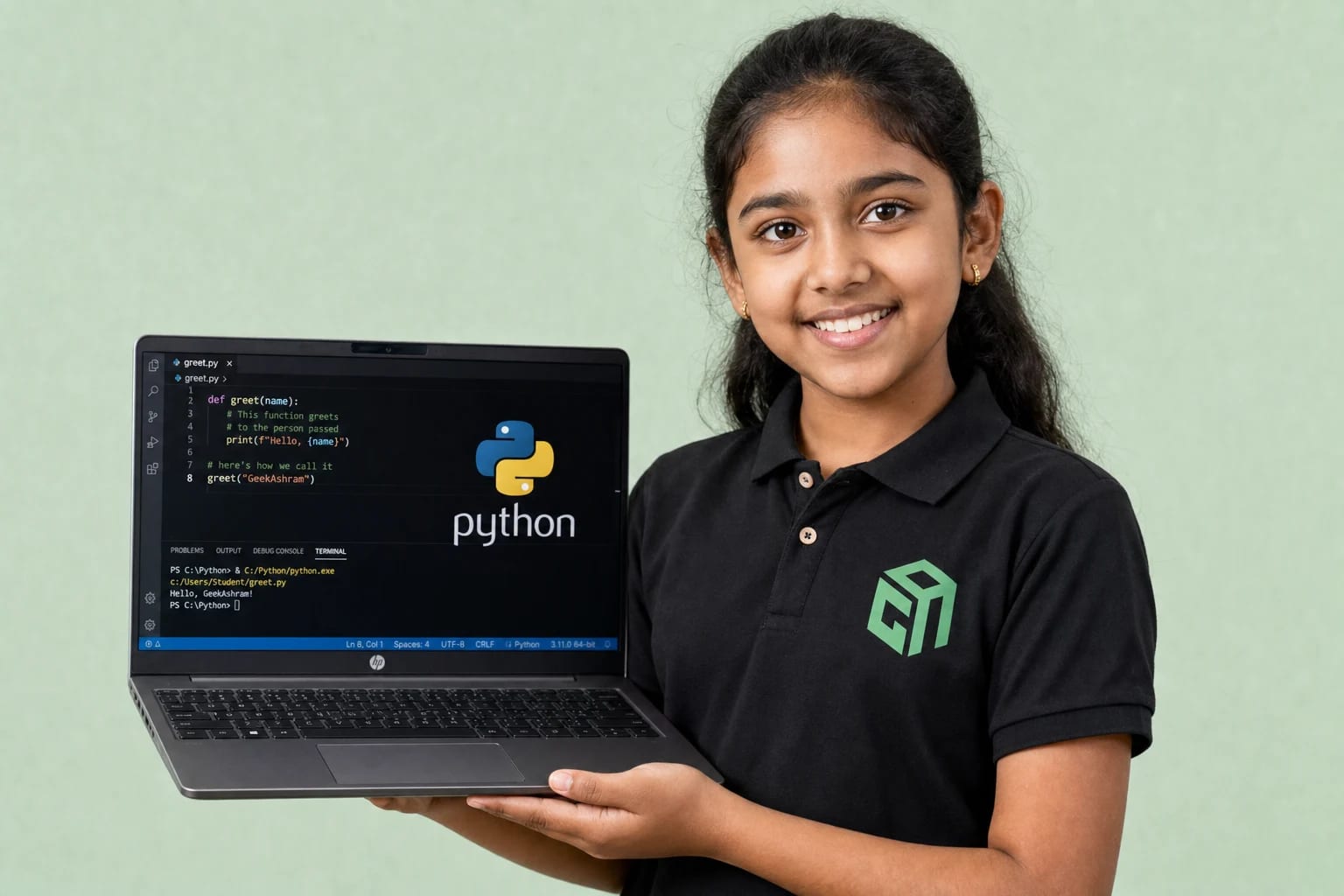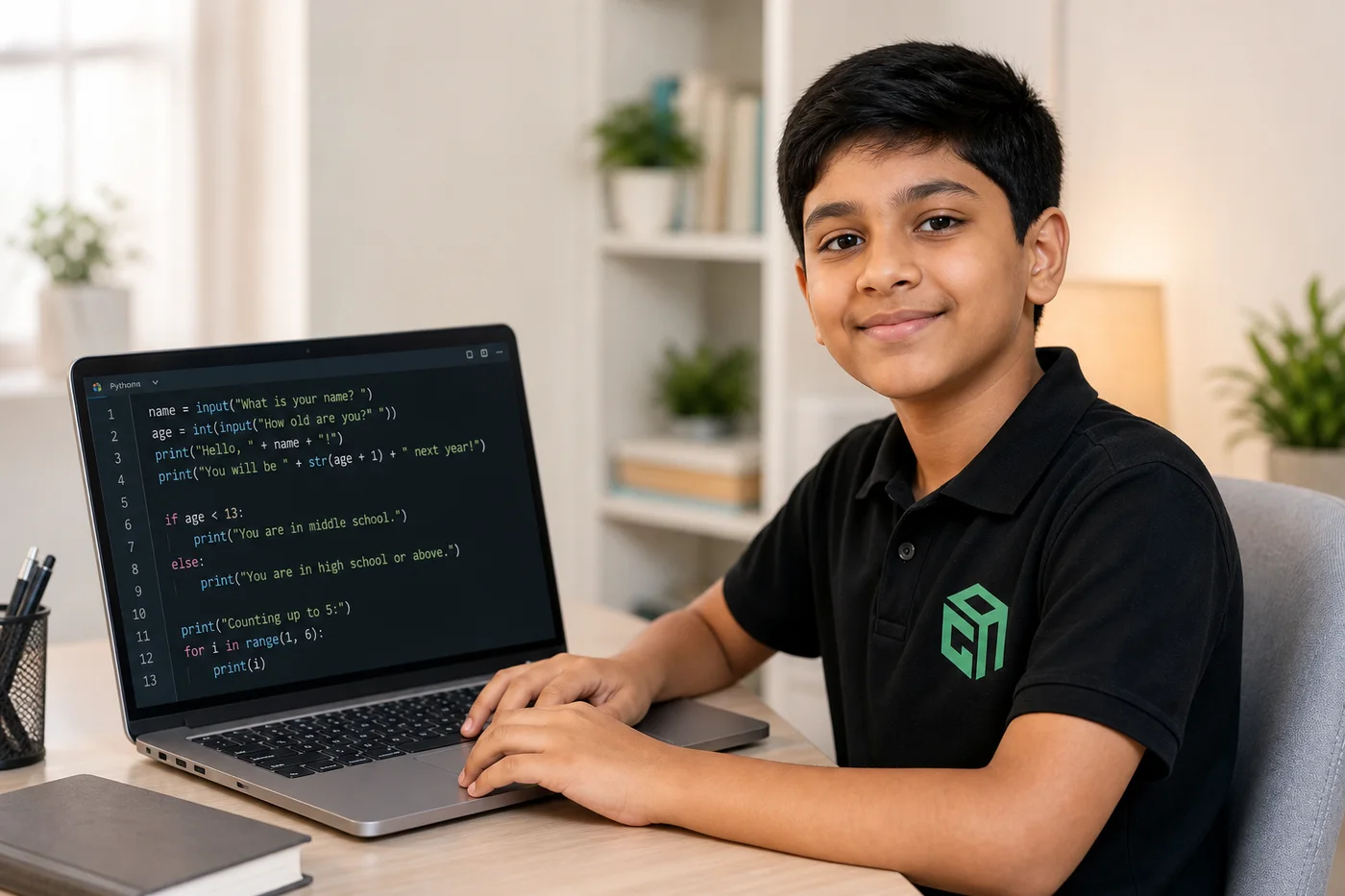
Looking for Python projects for beginners and kids? This guide shares 18 beginner-friendly Python project ideas with code missions, difficulty levels, and time estimates — from chatbots and games to robot battles and AI practice.
Python projects for beginners work best when they feel small, playful, and useful. A child should not start by memorising syntax. They should build something that responds, calculates, guesses, rolls a dice, asks questions, or tells a story.
This guide follows a project-based Python-with-AI style: clear input, simple conditions, loops, functions, lists, and small games that help students understand why code matters. When they are ready for mentor feedback on these builds, continue in Python with AI coding classes for kids or read what is Python for kids.
Why Start With Python Projects?
Projects help beginners move from “I know the concept” to “I can make something work.” That shift is important for kids because it builds confidence along with coding skill.
- They make variables, input, conditions, loops, and functions easier to understand.
- They give students quick wins, which keeps motivation high.
- They teach debugging naturally because every project has small mistakes to fix.
- They help kids explain their thinking in plain language.
- They create a portfolio of work students can show parents, teachers, and friends.
How to Pick the First Python Project
The best first project depends on the student’s comfort level. If your child is new to input and if-else, start with a chatbot or calculator. If they know loops, try games. If they know functions, move to robot missions and battle simulations.
- Class 3 to 5: FunBot, number guessing, multiplication table, dice rolling, and food games.
- Class 6 to 8: Treasure hunt, password game, escape game, calculator, quiz, and chatbot.
- Class 9 to 12: Function-based robot battle, student report, weather app, expense tracker, and AI chatbot extensions.
1. FunBot Chatbot
Build a simple chatbot called FunBot that asks the user to type hi, joke, job, color, or bye. The program responds with different messages using if-elif-else.
Your mission is to build FunBot, a friendly chatbot that can greet a user, tell a joke, talk about its job, ask about a favourite color, and say goodbye.
- Show a welcome message when the program starts.
- Ask the user to type one option: hi, joke, job, color, or bye.
- Store the user's choice in a variable.
- Use if-elif-else to give a different response for each option.
- Show a polite fallback message if the user enters something unexpected.
- What to print:
- If the user chooses hi, write `print("Hello friend!")`.
- If the user chooses joke, write `print("Why did the computer sneeze? It had a virus!")`.
- If the user chooses job, write `print("I help kids learn coding.")`.
- If the user chooses bye, write `print("Bye! Have a great day.")`.
- If the input does not match any option, write `print("Sorry, I don't understand.")`.
choice = input("Type hi, joke, job, color, or bye: ")

if choice == "hi":
    print("Hello friend!")
elif choice == "joke":
    print("Why did the computer sneeze? It had a virus!")
elif choice == "job":
    print("I help kids learn coding.")
elif choice == "color":
    color = input("What is your favourite color? ")
    print("Wow, I like " + color + " too!")
elif choice == "bye":
    print("Bye! Have a great day.")
else:
    print("Sorry, I don't understand.")
💡 What you learn: input, variables, conditions, user interaction, and friendly output messages.
Extension idea: Add more options like quiz, mood, hobby, or favourite subject.
2. Number Guessing Game
The computer stores a secret number and the player guesses it. The program tells the player whether the guess is correct, too high, or too low.
Create a mini guessing game where the computer hides a secret number and the player tries to find it.
- Store a secret number in a variable.
- Ask the player to guess a number between 1 and 10.
- Convert the user's input into an integer.
- Tell the player if the guess is correct, too high, or too low.
- Keep the messages friendly so the game feels fun to play.
- What to print:
- If the guess is correct, write `print("Correct!")`.
- If the guess is greater than the secret number, write `print("Too high")`.
- If the guess is smaller than the secret number, write `print("Too low")`.
secret = 7
guess = int(input("Guess a number between 1 and 10: "))

if guess == secret:
    print("Correct!")
elif guess > secret:
    print("Too high")
else:
    print("Too low")
💡 What you learn: integers, comparison operators, if-else, and game feedback.
Extension idea: Use the random module so the secret number changes every time.
3. Simple Calculator
A calculator is a perfect early Python project because it connects coding with school math. Students ask for two numbers and an operation, then show the answer.
Build a calculator that can help a student quickly solve basic math problems using Python.
- Ask the user to enter two numbers.
- Ask which operation they want to use: plus, minus, multiply, or divide.
- Use if-elif-else to choose the correct calculation.
- Print the final answer clearly.
- Show an invalid-operation message when the user enters a wrong symbol.
- What to print:
- Print the calculated answer after the operation.
- If the operation is wrong, write `print("Invalid operation")`.
num1 = float(input("Enter first number: "))
num2 = float(input("Enter second number: "))
op = input("Choose operation (+, -, *, /): ")

if op == "+":
    print(num1 + num2)
elif op == "-":
    print(num1 - num2)
elif op == "*":
    print(num1 * num2)
elif op == "/":
    print(num1 / num2)
else:
    print("Invalid operation")
💡 What you learn: input conversion, arithmetic operators, if-elif-else, and basic error handling.
Extension idea: Add division-by-zero protection and decimal support.
4. Dragon Battle Game
Create a five-round game where the player chooses attack or run. Each attack adds points, and the final score decides whether the player defeats the dragon.
Design a five-round dragon battle where the player must decide whether to attack bravely or run away safely.
- Run the game for exactly five rounds.
- Ask the player to type attack or run in each round.
- Add points when the player attacks.
- Show a different message when the player runs.
- Calculate the final score and announce whether the player defeated the dragon.
- What to print:
- If the player attacks, write `print("Hit! +10 points")`.
- If the player runs, write `print("You escaped!")`.
- After the game ends, write `print("Final Score:", score)`.
- If the score is 30 or more, write `print("You defeated the dragon!")`.
- Otherwise, write `print("Dragon wins!")`.
score = 0

for round_number in range(1, 6):
    choice = input("Attack or run? ")
    if choice == "attack":
        score += 10
        print("Hit! +10 points")
    else:
        print("You escaped!")

print("Final Score:", score)
if score >= 30:
    print("You defeated the dragon!")
else:
    print("Dragon wins!")
💡 What you learn: for loops, scoring, repeated decisions, and win conditions.
Extension idea: Add health points for both the player and the dragon.
5. Multiplication Table Helper
The program asks for a number and prints its multiplication table from 1 to 10. It is simple, useful, and great for understanding loops.
Create a magic table helper that prints a full multiplication table for any number the user enters.
- Ask the user to enter a number.
- Use a for loop from 1 to 10.
- Multiply the user's number by each loop value.
- Print each line in a readable table format.
- Make the output easy enough for a younger student to revise from.
- What to print:
- Print each table line clearly, like `print("6 x 1 = 6")`.
- Continue until the last line, like `print("6 x 10 = 60")`.
number = int(input("Enter a number: "))

for i in range(1, 11):
    print(number, "x", i, "=", number * i)
💡 What you learn: for loops, range, multiplication, and formatted output.
Extension idea: Let the user choose where the table should stop.
6. Favorite Food Game
Give the user six chances to enter favourite foods. If the user types a stop symbol, the program ends early. Otherwise it responds with a fun message for every food.
Build a playful food game where the user shares favourite foods and the program reacts with a tasty response.
- Give the user six chances to enter food names.
- Print a fun message for every food entered.
- If the user types the stop symbol, end the game immediately.
- Use break to stop the loop early.
- Let the loop end naturally if all six chances are used.
- What to print:
- For each food, write `print("Yummy", food)`.
- If the stop symbol is entered, write `print("Program stopped")`.
for chance in range(1, 7):
    food = input("Enter your favourite food: ")
    if food == "--":
        print("Program stopped")
        break
    print("Yummy", food)
💡 What you learn: for loops, break statements, user input, and repeated output.
Extension idea: Store all foods in a list and print the final menu.
7. Secret Password Game
The player gets five chances to enter the correct password. If they guess it, the program congratulates them and stops. If not, the game ends.
Create a password challenge where the player has limited chances to unlock the secret word.
- Store the correct password in a variable.
- Give the player five attempts.
- Ask for the password in each attempt.
- Stop the loop as soon as the password is correct.
- Print a game-over message if all attempts are used.
- What to print:
- If the password is correct, write `print("Sahi Password")`.
- If the password is wrong, write `print("Galat Password")`.
- If all chances are used, write `print("Game Over")`.
secret = "python123"

for chance in range(1, 6):
    password = input("Enter password: ")
    if password == secret:
        print("Sahi Password")
        break
    print("Galat Password")
else:
    print("Game Over")
💡 What you learn: loops, conditions, break, attempts, and simple security logic.
Extension idea: Hide the password in a variable and add hints after wrong attempts.
8. Escape the Game
Build a 10-level escape game where the player types continue to move forward or exit to stop. Each level teaches controlled repetition.
Build a level-based escape game where the player keeps moving forward until they complete all levels or choose to exit.
- Create 10 levels using a for loop.
- Before each level, ask the player to continue or exit.
- Print a level-completed message when the player continues.
- Stop the game immediately when the player types exit.
- Print a thank-you message after the game ends.
- What to print:
- After `continue`, write `print("Level completed")`.
- After `exit`, write `print("Game Over")`.
- When the program finishes, write `print("Thanks for playing!")`.
for level in range(1, 11):
    choice = input("Type continue or exit: ")
    if choice == "exit":
        print("Game Over")
        break
    print("Level", level, "completed")

print("Thanks for playing!")
💡 What you learn: for loops, break, state changes, and simple game flow.
Extension idea: Add a score for completed levels.
9. Magic Word Challenge
A wizard keeps asking for a magic word until the user types the correct answer. This is a clean way to understand while loops.
Help a wizard activate a spell by repeatedly asking the user for the correct magic word.
- Ask the user to enter a word.
- Keep asking until the correct magic word is typed.
- Use a while loop to repeat the question.
- Print a magic-activated message when the answer is correct.
- End the program only after the magic word is found.
- What to print:
- When the correct word is entered, write `print("Magic Activated")`.
word = ""

while word != "abracadabra":
    word = input("Enter the magic word: ")

print("Magic Activated")
💡 What you learn: while loops, repeated input, stopping conditions, and string comparison.
Extension idea: Count how many tries the user needed.
10. Treasure Hunt: Pirate Island
The player moves through steps on a pirate island by choosing left, right, or exit. Reaching step five means finding the treasure.
Create a pirate island adventure where the player moves step by step toward hidden treasure.
- Start the player at step 1.
- Ask the player to choose left, right, or exit.
- Move forward only when the player chooses the correct path.
- Keep the player on the same step when they choose the wrong path.
- End the game when the treasure is found or the player exits.
- What to print:
- If the player chooses the right path, write `print("You moved closer to treasure")`.
- If the player exits, write `print("Game Over")`.
- When the player reaches step 5, write `print("Treasure found!")`.
step = 1

while step < 5:
    path = input("Choose left, right, or exit: ")
    if path == "exit":
        print("Game Over")
        break
    if path == "right":
        step += 1
        print("You moved closer to treasure")
    else:
        print("Monkey blocks your path!")

if step == 5:
    print("Treasure found!")
💡 What you learn: while loops, nested conditions, progress tracking, and storytelling with code.
Extension idea: Add random obstacles and treasure points.
11. Welcome Robot Challenge
A friendly robot welcomes a visitor by name, prints motivational lines, and repeats the message for multiple rounds.
Program a cheerful robot that welcomes a visitor by name and motivates them to keep learning.
- Ask the user to enter their name.
- Print a welcome message using the name.
- Print four short motivational lines about coding.
- Repeat the welcome sequence three times.
- Add special daily messages between the rounds.
- What to print:
- Write `print("Welcome", name)`.
- Print the motivational coding lines one by one.
- Add day messages such as `print("Mistakes help us grow.")`.
name = input("Enter your name: ")

for day in range(1, 4):
    print("Welcome", name)
    print("Coding is fun.")
    print("Practice makes you better.")
    if day == 1:
        print("Let's learn something new today!")
    elif day == 2:
        print("Mistakes help us grow.")
💡 What you learn: functions, repeated messages, input, and reusable code blocks.
Extension idea: Make the robot choose a different message each day.
12. Robot Adventure Mission
Create separate functions for starting a mission, collecting coins, and finishing the mission. This teaches students how to organise code.
Build a robot mission game by splitting the adventure into small reusable functions.
- Create one function to start the mission.
- Create one function to collect a coin.
- Create one function to finish the mission.
- Call the functions in the correct story order.
- Make the output feel like a mini robot adventure.
- What to print:
- In the start function, write `print("Mission Started!")`.
- In the collect function, write `print("Coin Collected!")`.
- In the finish function, write `print("Mission Completed!")`.
def start_mission():
    print("Mission Started!")

def collect_coin():
    print("Coin Collected!")

def finish_mission():
    print("Mission Completed!")

start_mission()
collect_coin()
collect_coin()
finish_mission()
💡 What you learn: function definition, function calls, sequencing, and program structure.
Extension idea: Add more actions such as jump, recharge, or unlock door.
13. Dice Rolling Simulator
Use Python’s random module to roll a dice. The user can roll again or stop. It is a satisfying first project with randomness.
Create a dice simulator that lets the user roll a virtual dice as many times as they want.
- Use the random module to generate numbers from 1 to 6.
- Ask the user to press Enter to roll.
- Show the dice result after every roll.
- Ask if the user wants to roll again.
- Stop the game when the user says no.
- What to print:
- After every roll, write `print("You rolled:", number)`.
- When the user stops, write `print("Thanks for playing!")`.
import random

while True:
    input("Press Enter to roll the dice...")
    print("You rolled:", random.randint(1, 6))
    again = input("Roll again? (y/n): ")
    if again == "n":
        print("Thanks for playing!")
        break
💡 What you learn: random module, loops, input, and repeated play.
Extension idea: Roll two dice and calculate the total.
14. Student Report Card Helper
Use functions to add marks, calculate percentage, and find a grade. This project connects Python with school results and return values.
Build a report card helper that calculates total marks, percentage, and grade using functions.
- Create a function to add marks.
- Create a function to calculate percentage.
- Create a function to decide the grade.
- Call the functions in the correct order.
- Print the total, percentage, and grade clearly.
- What to print:
- Write `print("Total:", total)`.
- Write `print("Percentage:", percentage)`.
- Write `print("Grade:", grade)`.
def add_marks(math, science):
    return math + science

def calculate_percentage(total):
    return (total / 200) * 100

def find_grade(percentage):
    if percentage >= 90:
        return "A"
    if percentage >= 75:
        return "B"
    return "C"

total = add_marks(85, 90)
percentage = calculate_percentage(total)
print("Grade:", find_grade(percentage))
💡 What you learn: functions with return, parameters, percentage formula, and grade logic.
Extension idea: Allow marks for five subjects and store them in a list.
15. Robot Battle Game
Two robots fight for a few rounds. Functions calculate attack, defence, damage, health points, and the final winner.
Simulate a robot battle where two robots attack, defend, lose health points, and compete for victory.
- Create functions for attack, defence, and damage calculation.
- Give both robots starting health points.
- Run the battle for multiple rounds.
- Reduce health based on damage after every turn.
- Compare final health and announce the winner.
- What to print:
- Write `print("Robot 1 HP:", robot1_hp)`.
- Write `print("Robot 2 HP:", robot2_hp)`.
- At the end, write `print("Robot 1 Wins!")`, `print("Robot 2 Wins!")`, or `print("Draw!")`.
def calculate_damage(attack, defense):
    damage = attack - defense
    return max(damage, 0)

robot1_hp = 50
robot2_hp = 50

for round_number in range(1, 3):
    robot2_hp -= calculate_damage(15, 10)
    robot1_hp -= calculate_damage(13, 9)

print("Robot 1 HP:", robot1_hp)
print("Robot 2 HP:", robot2_hp)
💡 What you learn: functions, return values, formulas, rounds, and game simulation.
Extension idea: Run the battle for five rounds and stop early if a robot reaches zero health.
16. Treasure Chest List Game
Ask the user to enter five treasure items and store them in a list. Then print the complete chest, the first treasure, the last treasure, and the third treasure.
Create a magical treasure chest that stores items in a Python list and lets the user inspect selected treasures.
- Ask the user to enter five treasure items.
- Store all items inside a list.
- Print the complete treasure chest.
- Print the first, last, and third treasure using indexing.
- Make the output look like a real treasure inventory.
- What to print:
- Print the full treasure list.
- Write `print("First:", treasures[0])`.
- Write `print("Last:", treasures[-1])`.
- Write `print("Third:", treasures[2])`.
treasures = []

for i in range(1, 6):
    item = input("Enter treasure: ")
    treasures.append(item)

print("Treasure chest:", treasures)
print("First:", treasures[0])
print("Last:", treasures[-1])
print("Third:", treasures[2])
💡 What you learn: lists, indexing, input collection, and output formatting.
Extension idea: Let the user replace one treasure using list assignment.
17. Simple Expense Tracker
Students enter expenses, store them, and calculate the total. It is a practical project that shows how coding can solve everyday problems.
Build a simple expense tracker that helps a student record spending and calculate the total amount used.
- Keep asking the user to enter expense amounts.
- Stop when the user types done.
- Store every amount in a list.
- Calculate the total expense.
- Print the total and the number of entries.
- What to print:
- Write `print("Total:", total)`.
- Write `print("Number of entries:", count)`.
expenses = []

while True:
    entry = input("Enter expense or done: ")
    if entry == "done":
        break
    expenses.append(float(entry))

print("Total:", sum(expenses))
print("Number of entries:", len(expenses))
💡 What you learn: lists, loops, numbers, totals, and real-world data handling.
Extension idea: Add categories like snacks, books, travel, and games.
18. Simple AI-Style Chatbot Extension
After building a rule-based chatbot, students can improve it by matching keywords instead of exact phrases. This gives them a gentle introduction to how AI chatbots understand intent.
Upgrade a basic chatbot so it feels smarter by checking for keywords inside the user's message.
- Create a dictionary of keywords and replies.
- Ask the user to type a message.
- Convert the message to lowercase for easier matching.
- Check whether any keyword appears in the message.
- Reply with the best match or show a learning message when nothing matches.
- What to print:
- If a keyword matches, write `print("Bot:", reply)`.
- If nothing matches, write `print("Bot: I am still learning!")`.
responses = {
    "hello": "Hi! How can I help?",
    "python": "Python is great for beginners.",
    "project": "Let's build something fun."
}

message = input("You: ").lower()

for keyword, reply in responses.items():
    if keyword in message:
        print("Bot:", reply)
        break
else:
    print("Bot: I am still learning!")
💡 What you learn: dictionaries, string methods, keyword matching, and chatbot logic.
Extension idea: Connect the chatbot to a Python-with-AI lesson where prompts and responses are compared.
Tips for Completing Python Projects Faster
- Start with one concept at a time. Do not combine loops, functions, lists, and random modules on day one.
- Write the expected input and output before writing the code.
- Run the program after every small change instead of waiting until the end.
- Ask the student to explain the project in simple words before adding new features.
- Keep improving old projects. A better version of the same project teaches more than rushing to a new one.
How GeekashramJr Teaches Python Projects
At GeekashramJr, Python projects are taught as live, mentor-led building sessions. Students do not simply copy code. They understand the story, plan the input and output, write logic step by step, debug errors, and then add one creative extension.
For younger students, we keep projects playful: chatbots, dragons, robots, treasure hunts, food games, and dice. For older students, we connect the same foundations to AI, data, automation, and portfolio projects.
Final Thought
The best Python projects for beginners are not the longest or most advanced projects. They are the ones a student can understand, finish, explain, and improve. Start small, build consistently, and let every project make the child feel more like a creator.
If your child wants a structured path through Python and AI, book a The first 60-minute live session is priced in your local currency, adjusted on enrolment, and you get a written learning plan afterwards. We will suggest the right project path based on age, grade, typing comfort, and current coding level.